
Most players rely on default settings and hope for the best. That’s a mistake. This guide is about transforming your standard gaming audio into a real tactical advantage. Out-of-the-box sound profiles often bury critical details—enemy footsteps, distant reloads, subtle directional cues—that can decide a match before you ever see your opponent.
We’re solving the problem of generic, unoptimized audio by breaking down a layered approach most players overlook. Built on thousands of hours of competitive gameplay analysis, these gaming audio setup tips walk you step by step—from operating system tweaks to precise in-game adjustments—so you can hear what others completely miss.
The Foundation: Mastering OS and Driver-Level Audio
Before you even launch a game, your operating system is the true source of your audio signal. I learned this the hard way after weeks of blaming my headset for muddy footsteps.
Spatial Sound Explained
Windows Sonic, Dolby Atmos for Headphones, and DTS Sound Unbound all create virtual surround sound, meaning they simulate multi-speaker environments through stereo drivers. Windows Sonic is free and solid for competitive play. Dolby Atmos adds height cues that feel cinematic. DTS often emphasizes directional sharpness.
Here’s the mistake: I once enabled “virtual 7.1 surround” plus in-game surround plus driver enhancements. The result? Phase distortion and smeared footsteps. In tight shooters, that delay is fatal (ask any ranked player).
For competitive gaming, cleaner stereo or restrained spatial sound usually wins. For immersive RPGs, Atmos shines.
On PlayStation, enable 3D Audio (Tempest) and run the ear calibration. On Xbox, set Headset Audio to Dolby Atmos or DTS in the format menu.
Finally, disable Enhancements like Bass Boost or Loudness Equalization in your sound control panel. They inflate explosions but bury subtle cues you actually need most.
- Pro tip: Start flat, then adjust gradually using trusted gaming audio setup tips.
Sculpting Sound: The Equalizer (EQ) Advantage
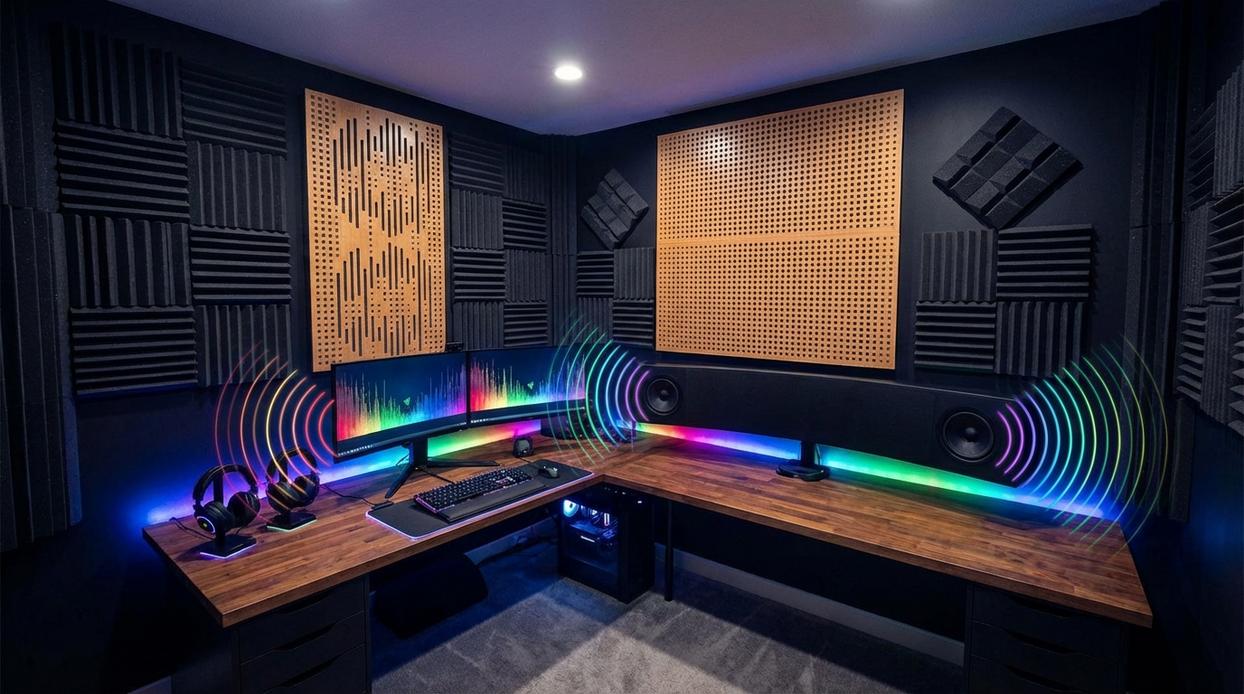
If your headset is a sword, the Equalizer (EQ) is the whetstone. It sharpens what matters. In simple terms, EQ lets you adjust specific sound frequencies—measured in Hertz (Hz)—so you hear more of what wins games and less of what doesn’t.
First, the basics. Bass (low frequencies, 20–250 Hz) delivers rumbles, explosions, and that dramatic “something big is happening” energy. Mids (250 Hz–4 kHz) carry footsteps, gunshots, and most in-game action cues. Treble (4 kHz–20 kHz) handles sharp details like glass shattering or subtle directional cues. Think of it as separating the orchestra so you can tell the violins from the drums (because in FPS, the violins might be a lurking enemy).
Now, the golden zone. For competitive FPS titles, enemy footsteps and reloads typically sit between 1 kHz and 4 kHz. Boosting this range slightly—while trimming excessive bass—can make movement pop out of the mix. However, some argue that boosting highs causes ear fatigue or distorts the intended sound design. Fair point. Still, a subtle, surgical boost (not a +12 dB monstrosity) enhances clarity without wrecking immersion.
Here’s a quick genre breakdown:
- FPS: Reduce sub-bass, boost 1–4 kHz, slight treble lift.
- Battle Royale: Moderate bass cut, balanced mid boost for distance cues.
- RPGs: Mild bass enhancement, gentle high lift for atmosphere.
To access EQ, open your headset software (like Razer Synapse or Logitech G Hub). No built-in EQ? Use Equalizer APO. Pro tip: save multiple presets and toggle depending on the game.
Dialing this in is one of the smartest gaming audio setup tips you’ll ever apply. Your ears—and your K/D ratio—will notice.
Inside the Game: Fine-Tuning for Victory
With your system audio dialed in, the battlefield starts to breathe. Footsteps crunch sharper, distant gunfire snaps like dry twigs, and the hum of machinery settles into the background instead of smothering it.
Audio Presets & Dynamic Range
Most games offer presets like Headphones, TV, and Night Mode. These control dynamic range—the gap between the quietest and loudest sounds. A “Wide” range makes explosions thunderous but can bury subtle cues. Competitive players often choose Compressed or Low dynamic range because it lifts faint details—like a reload click in the next room—into clearer focus. Some argue this flattens immersion. True. But winning firefights usually beats cinematic rumble (unless you’re chasing vibes, not ranks).
Balancing Your Audio Mix
Start with Master Volume, then fine-tune:
- SFX: Prioritize this. Gunshots and footsteps should cut cleanly.
- Dialogue: Keep clear but secondary.
- Music: For competitive play, set it to zero. Silence sharpens awareness.
Think of it like adjusting spices in a recipe—too much salt, and everything else disappears.
Voice Chat Optimization
Voice chat should sit just above ambient noise, not drown it. Teammates need to sound close, not blaring in your skull.
For deeper hardware alignment, revisit how to optimize your gaming mouse settings for precision and apply practical gaming audio setup tips to complete your competitive edge.
Your audio setup isn’t just about what you hear; it’s about what your team hears. So let’s fix it.
First, follow the Two-Finger Rule. Place your mic about two fingers’ width from your mouth, slightly off to the side. This positioning reduces plosives (harsh “P” and “B” pops) and breathing noise while keeping your voice full. Think of it like angling a camera for better lighting—small shift, big difference.
Next, enable noise suppression. Tools like Discord’s Krisp or NVIDIA Broadcast filter out keyboard clicks and fan hum. For example, if your mechanical keyboard sounds like a drum solo mid-fight, suppression keeps comms clean. However, don’t crank it too high or your voice may sound robotic.
Then set your input gain. In Windows or console settings, speak at your loudest typical volume and adjust until meters stay out of the red (that red zone is clipping—distortion from overload). Pro tip: record a 10-second test.
Finally, apply these gaming audio setup tips consistently and recheck settings after updates.
Your New Sonic Edge is Ready
You came here looking for more than average sound—you wanted a competitive edge. Now you have a complete, layered system that transforms your audio from background noise into actionable intelligence. By applying these gaming audio setup tips, you’re no longer guessing where threats are coming from—you’re pinpointing them.
Generic presets were holding you back. Dialed-in frequencies win rounds.
The next step is simple: load up your favorite game, fine-tune your settings, and test the difference immediately. Thousands of competitive players trust these methods to sharpen reaction time and awareness. Don’t settle for flat audio—optimize your setup now and start winning the fights you used to lose.